1 Finding Journal Articles
In this chapter, you will learn how to find journal articles and use a reference manager.
1.1 Finding journal articles
1.1.1 Identifying key words
Before you can read journal articles, you need to find them. The first step in a literature review is working out what your keywords will be. You will be looking in databases, so you need to select the appropriate terms to ensure your search results return the content you are looking for. It takes patience to identify and tweak the search terms that identify the content you are looking for. As a starting point, these might be your topic or variables.
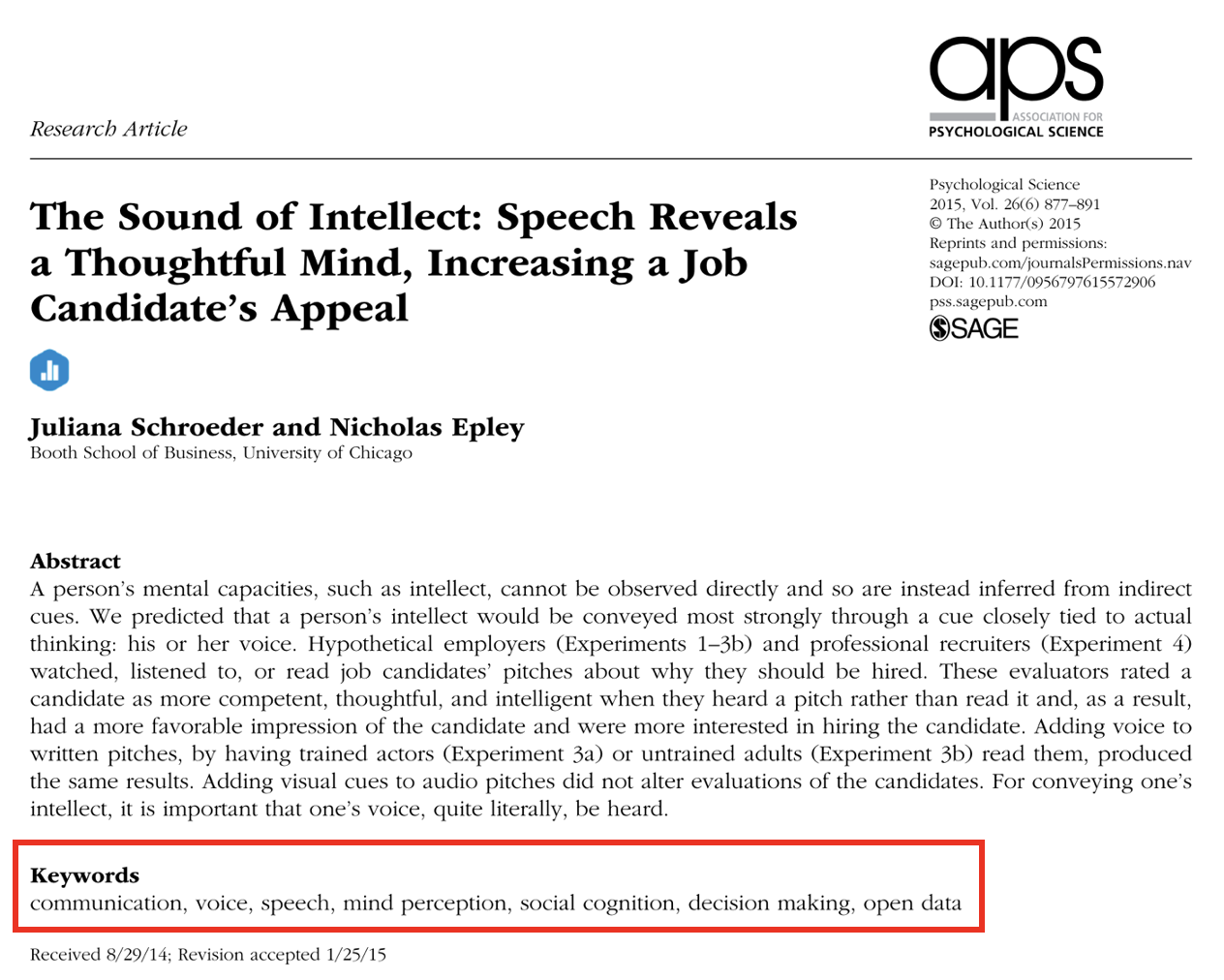
Once you identify some useful articles, these can provide further inspiration and specificity. Many journal articles will give you a helping hand as the authors must provide several keywords relating to the article. For example, Figure 1.1 from Schroeder and Epley (2015) highlights the keywords that describe their article.
The majority of articles will post keywords under the abstract. Here, we can see there are seven words or short phrases that summarise the content of the article. Sometimes they are not truly relevant to the topic (e.g., open data here), so you will need to skim a few articles to recognise recurring themes and potentially useful keywords.
1.1.2 Search strategies
Once you have some keywords, your next step will be to try and find more articles. The two main data bases you will use are the University of Glasgow library and Google Scholar.
You can access the University of Glasgow library through your student portal. This is the database that the university uses to pay for access to journal articles and ebooks. Glasgow has a huge number of journals available, so this will be one of your best resources as you may be asked to pay for articles if you access journal websites directly, never pay for articles though, there is always a way to find them. Google Scholar is also a valuable resource that can return different results. A combination of these two databases will be a good starting point for any essay or report.
Warning
Never pay for journal articles. We have a huge library at Glasgow, so you will almost always find the article by searching for the title. If it is not available, then there are other strategies like searching the title on Google Scholar or regular Google and there might be a PDF someone has posted. Authors can often freely share an author manuscript (also known as a post-print) which contains the same text as the final article but without the fancy journal formatting.
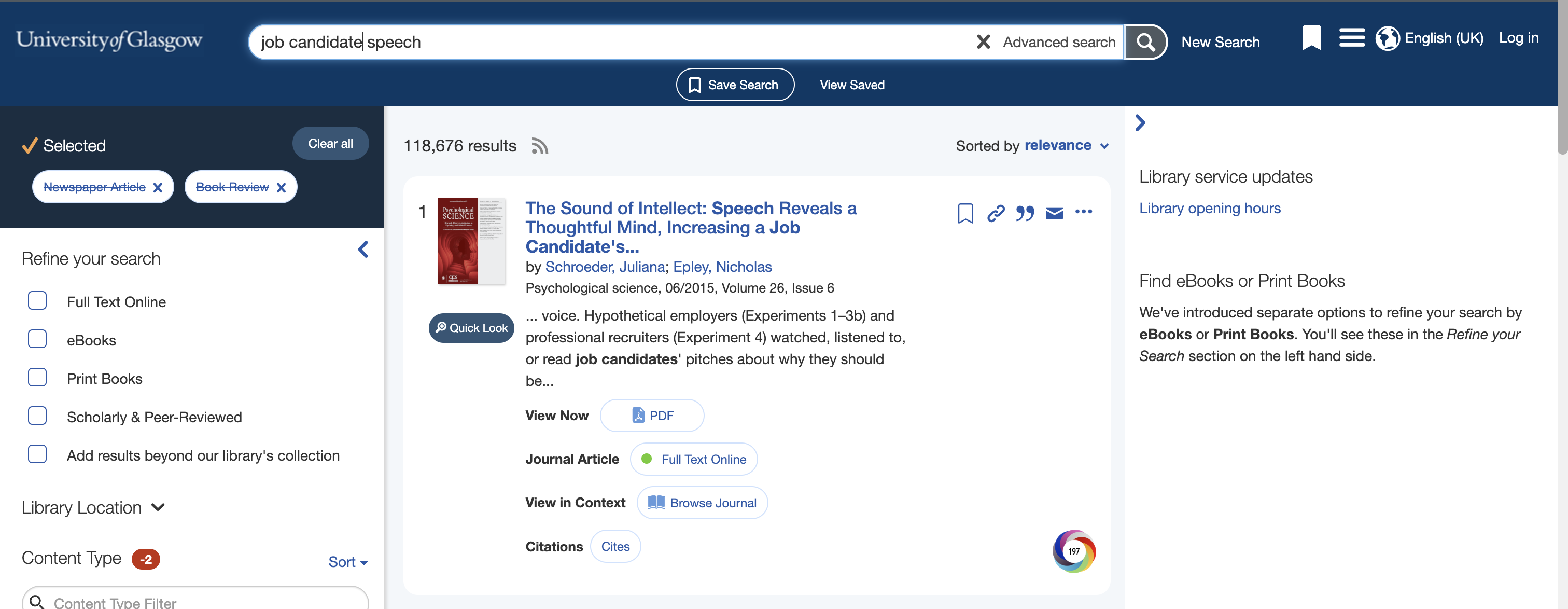
Enter your keywords in the search bar of these databases. You can enter one word or phrase and the data base will try to locate resources that contain that word. For example, we might want to find additional articles investigating job candidates’ speech (Figure 1.2).
However, it is usually much more powerful to combine search terms to provide more precise results. If you enter single words or phrases, you might find there are thousands of results which contain mostly irrelevant articles. You can use two or more keywords to look for more specific articles (Figure 1.3).
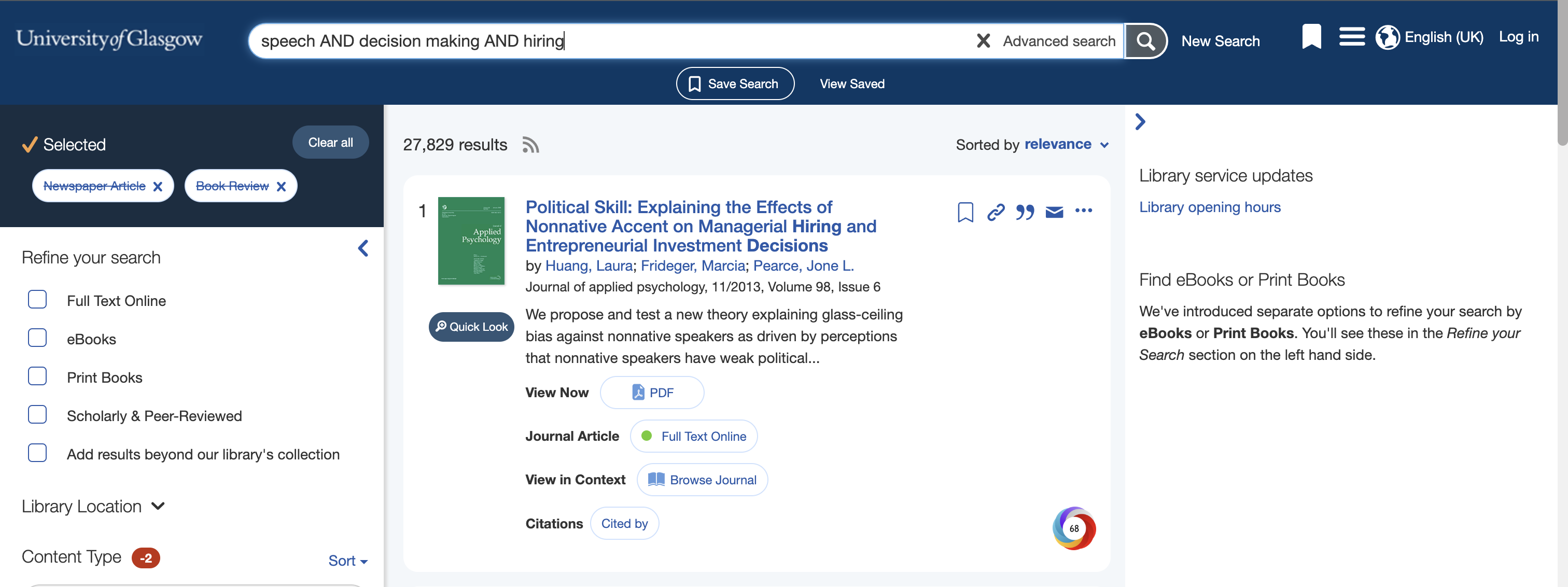
Here, you can see we have used speech AND decision making AND hiring. The capitalised AND is called a Boolean operator. It is used to link together the three words. It means we only want articles that contain the three words. Not one of them, not two of them, but all three. Using AND narrows down your search. Alternatively, you can use OR which expands your search to look for two or more terms. AND will provide fewer results and OR will provide more. You can also use NOT to rule out particular terms.
Note
You can do this in the single search bar by entering the Boolean operators yourself. Alternatively, if you click advanced search, you can add search boxes and choose from AND, OR, and NOT for each term. You can also start to filter your results to only return results from a date range, if you only wanted articles from say the past 5 years.
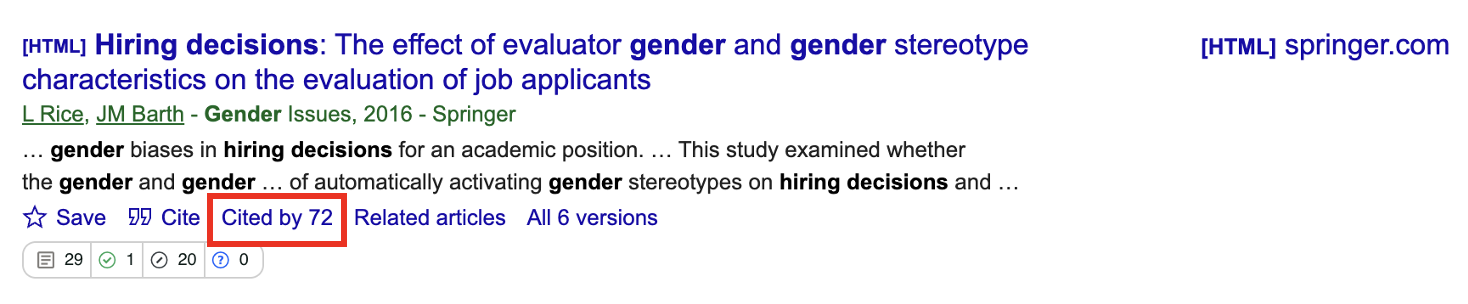
You can also use Boolean operators in Google Scholar to combine the search terms gender AND “hiring decisions”. This means we only want search results that contain both elements (Figure 1.4).
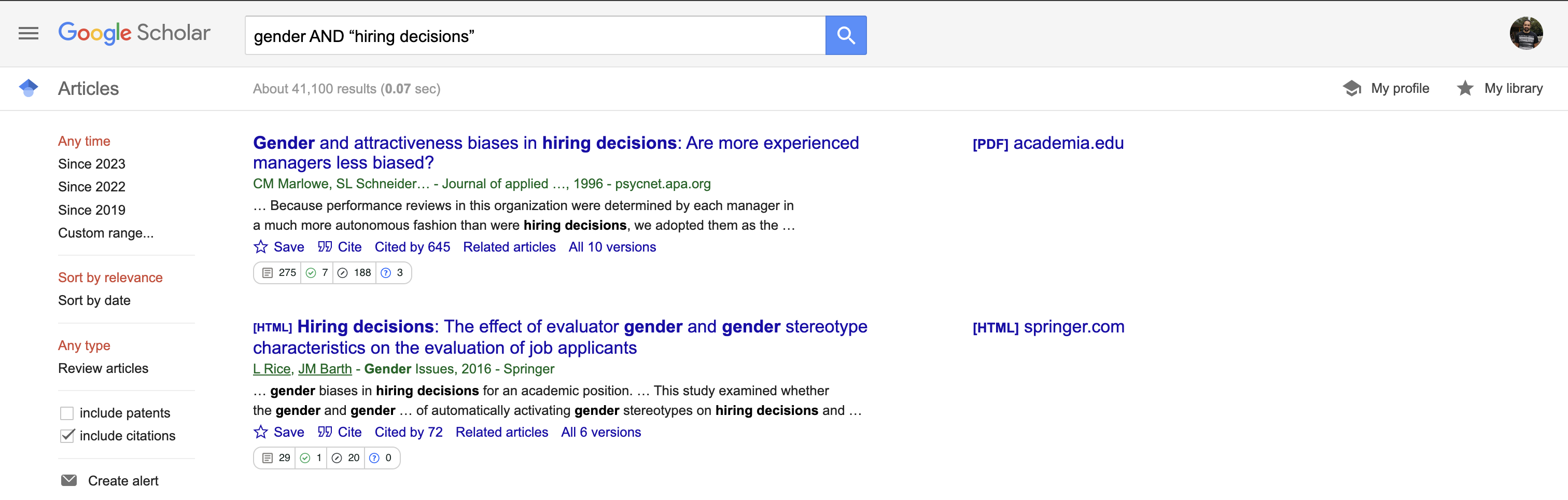
We surround the phrase “Hiring decisions” with quotes. This forces databases to search for the specific phrase exactly as typed in the quotes. If we did not surround it by quotes, we can get search results that contain the words hiring and decisions separately or together. If they are separate, the results might not be quite what we are looking for.
As a final literature searching tip, once you find an article that is precisely on the topic you are searching for, you can look at articles in it’s reference list and at articles that have since cited it. This is no guarantee there will be something useful, but you can often benefit from the citation trees of your key articles.
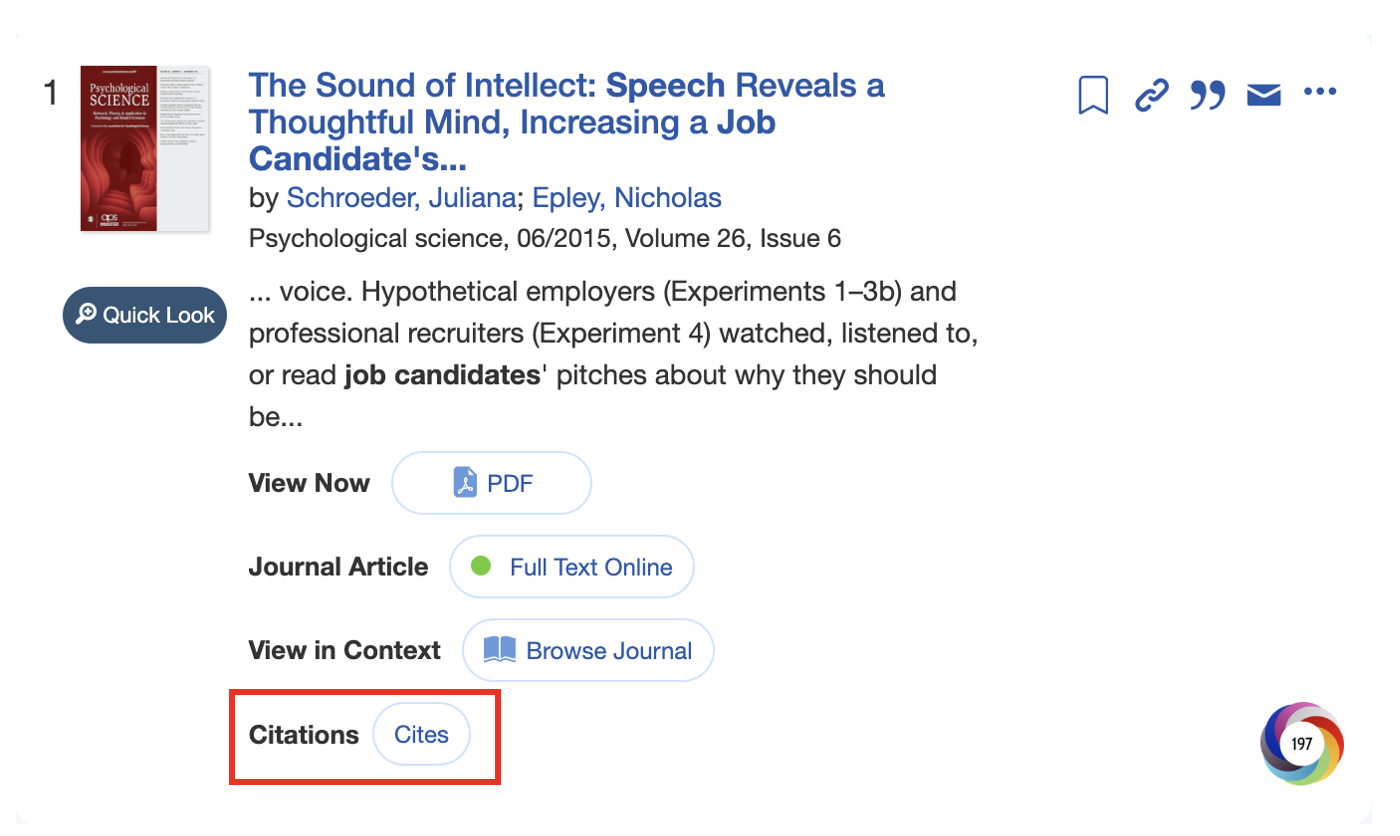
On the library portal, you can see articles that your target articles cites, which will show the articles in its reference list that are readable by the library database (Figure 1.5).
Alternatively, on Google Scholar, you can look through the articles that have since cited your target article (Figure 1.6). You will get fewer hits for more recent articles as there has been less time for another article to be published, but its another useful strategy for identifying potentially useful articles.
For further tips, see the University of Glasgow library guide on how to search for articles and a brief video navigating around the library search function.
1.2 Using a reference manager to store your results
Throughout the programme, you must use APA 7th edition. Although you could download each article and manually enter the citation and reference list entries, there are more efficient ways to provide you with more time in other areas of your report or essay writing. A reference manager will help to keep your research organised and it will do a lot of the heavy lifting when it comes to entering citations and creating the reference list.
Our recommendation is Zotero which you can download for free at https://www.zotero.org/. There are alternatives (such as EndNote which the university endorses as approved software), but most of the psychology team prefer Zotero. Under preferences, make sure you select APA 7th edition to format the citations and references correctly.

Important
As third-party software which requires you to create an account, we recommend not using the same password as your university account.
Using Zotero, you can:
Install a plugin to save articles you find through your web browser.
If there is an open access version of the article PDF, Zotero will automatically save it.
Manually upload PDFs and Zotero will try to find the key metadata such as the title, volume number etc.
Create folders to keep your research organised into folders, such as one for each assignment.
Create shared folders to add and access the same articles with people you are working with.
Copy citation and reference lists into your assignment.
Use the Zotero plugin in Word or Google Docs to enter citations and automatically create a reference list.
Add notes and highlights to each article you read within Zotero.
Sync your library across devices, so you can download articles on your laptop, but read the articles on your phone or tablet.
Just keep in mind, Zotero cannot always find all the information or it gets some of the details wrong. So, you may have to manually enter/edit the details for the citation/reference to be formatted correctly. This is why it is still important to learn the key details of APA formatting, but you are using your understanding more efficiently to spot mistakes rather than manually format each entry in your assignment.
If you like to follow along to a video, there are some helpful resources on YouTube to guide you through a lot of the basics:
McGill University has a playlist of a short tutorials.
There are also longer tutorials working through the features of Zotero.
The Zotero website also has a quick start guide if you prefer a written explanation in addition to detailed documentation.